|
|
|
|
|
| |
|
|
|
 |
|
|
|
|
|
|
|
 |
|
|
|
 |
|
|
|
 |
|
|
|
 |
|
10
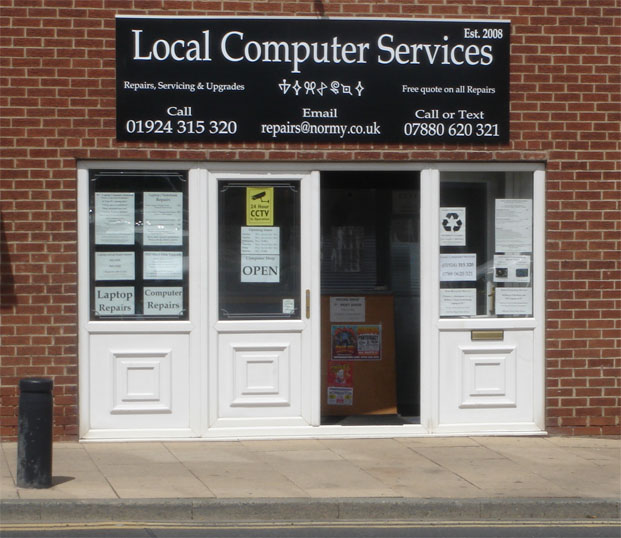
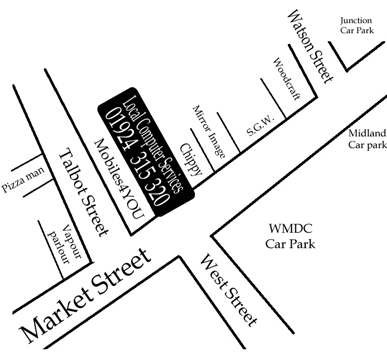
Market Street, Normanton |
|
| |
|
"Reasonable
rates and friendly service" |
|
| |
|
Opposite
West Street, Next to the Chippy |
|
| |
|
|
|
| |
|
|
|
| |
|
|
|
| |
|
Shop
Opening Times |
|
| |
|
|
|
| |
|
Please TEXT on 0788 0620 321 |
|
| |
|
to
arrange a Drop off or Collection |
|
| |
|
or
for General Enquires |
|
| |
|
|
|
| |
|
|
|
Monday |
|
11am
- 1pm then
2pm - 4pm*
|
|
Tuesday |
|
11am
- 1pm then
2pm - 4pm*
|
|
Wednesday |
|
By
Appointment 10am - 8pm
|
|
Thursday |
|
11am
- 1pm then
2pm - 4pm*
|
|
Friday |
|
11am
- 1pm then
2pm - 4pm*
|
|
Saturday |
|
By
Appointment 10am - 6pm
|
|
Sunday |
|
By
Appointment 10am - 6pm
|
|
| |
|
(*Appointments before 11am & after 4pm)
|
|
| |
|
|
|
| |
|
|
|
| |
|
Local
Computer Services (Normanton) |
|
| |
|
Is
NOT a Telephone based business |
|
| |
|
If
you are unable to contact us using the |
|
| |
|
LandLine
number 01924 315 320 |
|
| |
|
Please
Try Texting the Mobile |
|
| |
|
number 0788 0620 321 |
|
| |
|
|
|
| |
|
It
is the policy of this business, to Reject and Block:
|
|
| |
|
Unsolicited
calls of any type, |
|
| |
|
All
calls from outside the local area, |
|
| |
|
Unknown
and Anonymous calls. |
|
| |
|
|
|
| |
|
(if
you are "Ex-Directory" or have a "Withheld" number
|
|
| |
|
please
dial 141 or 1470 before our number |
|
| |
|
to "unhide" your number) |
|
| |
|
|
|
| |
|
|
|
| |
|
|
|
| |
|
Computer
Servicing, Repairs and Upgrades |
|
| |
|
|
|
| |
|
Upgrades: |
|
| |
|
Upgrade
any old tired computer |
£225* |
| |
|
Quad
Core Upgrade package, |
|
| |
|
includes: (CPU, RAM, Main Board & Installation) |
|
| |
|
Intel
i3-10105 Quad Core 3.7GHz-4.4GHz LGA1200 CPU
|
|
| |
|
Comet Lake Processor: Quad Core with 8 Threads. 65W. |
|
| |
|
8092MB/8GB
DDR4 3200MHz RAM with heatsinks. |
|
| |
|
(For
16784MB/16GB DDR4 RAM with heatsinks -
Add £35) |
|
| |
|
Main
Board: Gigabyte Socket LGA1200, DDR4 Memory, |
|
| |
|
PCI-Express,VGA, SATA 6GBs, M.2, DVI-D, HDMI, D-Sub, |
|
| |
|
Audio
& Gbe LAN. |
|
| |
|
|
|
| |
|
Price
includes full installation into your original PC case, |
|
| |
|
Reinstall
of OS, hardware check and software optimisation. |
|
| |
|
|
|
| |
|
*(Other
Parts / Components may be required, these are not included in the |
|
| |
|
initial
£225, for example, a Higher Wattage Power Supply Unit may be required, |
|
| |
|
this is not covered by the initial £225). |
|
| |
|
|
|
| |
|
|
|
| |
|
Memory
Upgrades (includes in-store installation) |
Laptop |
PC |
| |
|
1024MB
(1GB) DDR2 RAM |
£10 |
£10 |
| |
|
2048MB
(2GB) DDR2 RAM |
£20 |
£20 |
| |
|
1024MB
(1GB) DDR3 RAM |
£10 |
£10 |
| |
|
2048MB
(2GB) DDR3 RAM |
£20 |
£20 |
| |
|
4096MB
(4GB) DDR3 RAM |
£25 |
£35 |
| |
|
8192MB
(8GB) DDR3 RAM |
£60 |
£50 |
| |
|
16382MB
(16GB) DDR3 RAM (2 x 8GB) |
n/a |
£115 |
| |
|
32764MB
(32GB) DDR3 RAM (2 x 16GB) |
n/a |
£225 |
| |
|
8192MB
(8GB) DDR4 RAM |
£40 |
£35 |
| |
|
16382MB
(16GB) DDR4 RAM (2 x 8GB) |
£70 |
£70 |
| |
|
32764MB
(32GB) DDR4 RAM (2 x 16GB) |
n/a |
£145 |
| |
|
8192MB
(8GB) DDR5 RAM |
n/a |
£75 |
| |
|
16382MB
(16GB) DDR5 RAM (2 x 8GB) |
n/a |
£135 |
| |
|
32764MB
(32GB) DDR5 RAM (2 x 16GB) |
n/a |
£235 |
| |
|
|
|
|
| |
|
|
|
| |
|
PC
Hard Disk Drive Upgrades |
SATA |
|
| |
|
1TB
/ 1000GB 7,200rpm (as an extra drive) |
£ASK |
|
| |
|
1TB
/ 1000GB 7,200rpm (as the System/Boot drive*) |
£ASK |
|
| |
|
240GB
Solid State Drive (as
an extra drive) |
£55 |
|
| |
|
240GB
Solid State Drive (as the System/Boot
drive*) |
£75 |
|
| |
|
480GB
Solid State Drive (as
an extra drive) |
£75 |
|
| |
|
480GB
Solid State Drive (as
the System/Boot drive*) |
£95 |
|
| |
|
(*includes installation & Re-install of Windows etc) |
|
| |
|
|
|
| |
|
Laptop
Hard Disk Drive Upgrades |
|
| |
|
1TB
/ 1000GB 5,400rpm SATA (as the System/Boot drive) |
Price
on request |
| |
|
240GB
S.S.D. Hard Disk SATA (as the System/Boot drive) |
£75 |
| |
|
480GB
S.S.D. Hard Disk SATA (as the System/Boot drive) |
£95 |
| |
|
(includes installation & Re-install of Windows etc) |
|
| |
|
|
|
| |
|
S.S.D.
Hard Disks / Solid State Drive
Hard Disks: |
|
| |
|
No
Mechanical Parts within the drive, based on Memory Chip |
|
| |
|
Technology,
Data integrity NOT damaged by minor drops & |
|
| |
|
knocks, a more sturdy technology for Family / Active |
|
| |
|
environments. SSD Drives Don't need Defragmenting, just a |
|
| |
|
little Retrim occasionally. SSD also uses less power, which |
|
| |
|
can
extend batterry life in laptops. |
|
| |
|
|
|
| |
|
Service: |
|
| |
|
Computer
Service / Virus
removal / Spyware removal |
£25 |
| |
|
includes:
hardware check & software optimisation, |
|
| |
|
Virus & Spyware removal and installation of Anti-virus, |
|
| |
|
Firewall
and Anti-Spyware where necessary. |
|
| |
|
|
|
| |
|
Re-install
OS (Operating System / Windows) |
|
| |
|
Windows
95/98/ME re-install |
£25 |
| |
|
Windows
2000 / Xp re-install |
£35 |
| |
|
Windows
/ Mac OS Reinstall: |
£35 |
| |
|
Vista
/ Win 7 / Win 8 / Win 8.1 / Win10 / Win 11 / OS |
|
| |
|
|
|
| |
|
Repair:
Replacement of faulty parts |
Laptop |
PC |
| |
|
|
|
|
| |
|
Laptop
Circuit Board Repairs: NO FIX NO FEE |
£65 |
N/A |
| |
|
Symptoms
resolved include (but not limited to): |
|
|
| |
|
Not Charging, No Power, Power but no display, Graphics |
|
|
| |
|
and
Display Problems, Over-heating Problems. |
|
|
| |
|
Successful
Repairs are charged at £65 and |
|
|
| |
|
include
a 3 month Warranty. |
|
|
| |
|
|
|
|
| |
|
15.6"
LED
LCD Laptop* Screen Replacement |
£85 |
N/A |
| |
|
(Replacement
of damaged 15.6"/15.4" Laptop* LED screen) |
|
|
| |
|
17"
LED
LCD Laptop* Screen Replacement |
£95 |
N/A |
| |
|
(Replacement
of damaged 15.6"/15.4" Laptop* LED screen) |
|
|
| |
|
(other
sizes available, price upon request) |
|
|
| |
|
|
|
|
| |
|
Laptop* Power / Charger Connector Repaired
or Replaced |
£65 |
N/A |
| |
|
(if you are unable to charge your Laptop* due to damage to
the |
|
|
| |
|
power / charging socket on the Laptop*) |
|
|
| |
|
|
|
|
| |
|
(*
Most popular brands of Laptop and Notebook Repaired) |
|
|
| |
|
|
|
|
| |
|
CDrom
/ CDrw / DVDrom / DVDrw (etc.) inc. replace &
check |
£20 |
£20 |
| |
|
Includes 1 (one) new SATA DVDrw Disk Drive (Burns & reads both CD &
DVD) |
|
|
| |
|
|
|
|
| |
|
Hard
Disk Drive replacement (240Gb HDD
Laptop or PC) |
£75 |
£75 |
| |
|
Includes re-install of Operating System (Windows) & Data Recovery (If
possibly) |
|
|
| |
|
|
|
|
| |
|
Other
Components: |
£Call |
£Call |
| |
|
All
major Computer Parts repaired or replaced |
|
|
| |
|
Call
for a free quote on 01924 315 320 |
|
|
| |
|
Or
TEXT on 0788 0620 321 |
|
| |
|
|
|
| |
|
Other
Services: |
|
| |
|
Wireless
Router / Internet configuration from |
£35 |
| |
|
(Includes
configuration of one wireless router & one wireless Computer/Pc on-site) |
|
| |
|
Extra
PC/Laptop config. during site visit : |
£10
per PC/Laptop |
| |
|
|
|
| |
|
|
|
| |
|
All
information correct at the time of publication, |
|
| |
|
prices
& times may change without prior notice. |
|
| |
|
|
|
| |
|
|
|
| |
|
|
|
| |
|
|
|
| |
|
|
|
| |
|
|
|
| |
|
|
|
| |
|
General
Tips for Windows users |
|
| |
|
|
|
| |
|
Internet Security
recommendations |
|
| |
|
Please ensure you have
the following 3 forms of protection: |
|
| |
|
|
|
| |
1. |
Anti-virus software
(free
here) |
|
| |
|
|
|
| |
2. |
a
Firewall, including Port and Application protection
|
|
| |
|
(DO
NOT rely on the free Windows Firewall to fully
protect you |
|
| |
|
as
this only provides port protection and a little more) |
|
| |
|
*Firewall test HERE |
|
| |
|
|
|
| |
3. |
Anti-spyware
software (free
here) (free
here) (free here) |
|
| |
|
|
|
| |
|
NB: Any Software
package that does three or four jobs, i.e. |
|
| |
|
Anti-virus, Firewall and Anti-Spyware, Spam
filter etc etc etc |
|
| |
|
MAY make your computer
slower, |
|
| |
|
below are some examples: |
|
| |
|
Mcafee Internet Security |
|
| |
|
Norton Anti-Virus/ Internet Security/System
Security/Works |
|
| |
|
|
|
| |
|
(Separate
Anti-virus, Firewall and Anti-Spyware are |
|
| |
|
usually
more robust, |
|
| |
|
because
if one program fails the other two usually still |
|
| |
|
run
whereas with norton/mcafee, one failing module can |
|
| |
|
cause
the whole security system to fail, norton/mcafee also |
|
| |
|
over-ride
the MS Windows protection once installed. |
|
| |
|
So
if norton / mcafee fails on your PC, |
|
| |
|
you could end up having no protection at all). Be Aware! |
|
| |
|
|
|
| |
|
|
|
| |
|
For
information about the health of your PC, visit the link below: |
|
| |
|
BBC
Click - PC Health Check
(external Link) |
|
| |
|
|
|
| |
|
|
|
| |
|
Flat
Screen / LCD Monitor or Laptop / Notebook Users: |
|
| |
|
|
|
| |
|
ALWAYS
set your Screen to Power off, |
|
| |
|
|
|
| |
|
your
LCD screen has components that WILL wear out, |
|
| |
|
|
|
| |
|
Please
Don't use an animated or picture screen-saver, |
|
| |
|
|
|
| |
|
as
that will make you need a replacement more quickly. |
|
| |
|
|
|
| |
|
|
|
| |
|
Laptop
/ Notebook Users: |
|
| |
|
|
|
| |
|
Your
Laptop / Notebook Battery has a Limited Life, |
|
| |
|
|
|
| |
|
If
your system will run without the Battery installed, |
|
| |
|
|
|
| |
|
remove
the Battery & just use the Mains Power/Charger Unit, |
|
| |
|
|
|
| |
|
or
if not, charge your battery to Full then unplug the Charger; |
|
| |
|
|
|
| |
|
Never
leave the Laptop / Notebook plugged into the Charger |
|
| |
|
|
|
| |
|
all
the time with the battery installed, only when Charging |
|
| |
|
|
|
| |
|
the
Battery. |
|
| |
|
|
|
| |
|
|
|
| |
|
Local
Computer Services Advice: |
|
| |
|
Backing up All your important
info, |
|
| |
|
pictures,
videos, documents, music etc |
|
| |
|
BEFORE
|
|
| |
|
attempting
ANY of the system maintenance tasks
below. |
|
| |
|
All
the below system maintenance tasks are microsoft utilities, |
|
| |
|
and
therefore Local Computer Services accepts |
|
| |
|
no responsibility for any subsequent problem or data lose |
|
| |
|
occurring
during utilisation of the Microsoft system maintenance tasks. |
|
| |
|
|
|
| |
|
|
|
| |
|
Error
checking your Hard Disk (Thorough
Check) |
|
| |
|
(use
this Method a minimum of once per month |
|
| |
|
or
straight after a unscheduled re-boot or system crash |
|
| |
|
or
always before a Defragmentation) |
|
| |
|
|
|
| |
a |
Open
"My Computer" |
|
| |
b |
Right
Click over "Local Drive C:" or its Icon |
|
| |
|
(or the Hard Disk you're checking, e.g. "Local Drive E:") |
|
| |
c |
Left
Click on "Properties" at the bottom of the pop-up menu |
|
| |
|
|
|
| |
|
when
the "Properties" window opens |
|
| |
d |
Left
Click on the "Tools" tab near the top |
|
| |
e |
Then
Left Click "Check now..." in the Error-checking section |
|
| |
|
|
|
| |
|
when
the small new window opens |
|
| |
f |
Put
a "tick" in both boxes: |
|
| |
|
"tick"
(Automatically fix file system errors) |
|
| |
|
"tick"
(Scan for and attempt recovery of bad sectors) |
|
| |
|
|
|
| |
|
(Only
"tick" Automatically fix file system errors to run the |
|
| |
|
Standard
Check, this will only take about 5-20 minutes) |
|
| |
|
|
|
| |
|
|
|
| |
g |
and
Left Click on "Start" on the small window |
|
| |
|
|
|
| |
h |
Another
message will appear, Left Click on "Yes" (win xp) |
|
| |
|
or
Left Click on "Schedule disk check" (win vista / win 7 / win 8) |
|
| |
|
(the
message in xp says you can only do a System Hard Disk check |
|
| |
|
when
Windows is not full running, because it needs exclusive |
|
| |
|
access
to the Hard Disk been checked and will run on next restart) |
|
| |
|
|
|
| |
i |
then
Left Click the "Start" Button in the corner of your screen |
|
| |
j |
Left
Click "Turn off Computer..." |
|
| |
k |
Left
Click on "Restart" |
|
| |
|
|
|
| |
|
As
your computer re-starts, before starting full Windows Xp |
|
| |
|
a
blue screen should appear, giving a Ten (10) second countdown |
|
| |
|
please
don't press any keys at this stage, |
|
| |
|
wait
for the Hard Disk check to begin |
|
| |
|
|
|
| |
|
(then
go make a tea or something, |
|
| |
|
average
checking times for a 20Gb Hard Disk: 15 - 80 mins) |
|
| |
|
|
|
| |
|
Once
the Hard Disk check has finished the computer may: |
|
| |
|
a)
Re-boot / re-start then load Windows |
|
| |
|
b)
immediately load Windows |
|
| |
|
Both
these are normal, any errors should have been repaired, |
|
| |
|
unless
serious errors have occurred on your Hard Disk Drive, |
|
| |
|
in
that case, back-up your personal data (photos, favorites, etc), |
|
| |
|
to
CD / DVD or Removable Storage Device and have the |
|
| |
|
Hard
Disk Drive replaced by qualified service personnel as soon |
|
| |
|
as
possible. ;0) |
|
| |
|
|
|
| |
|
|
|
| |
|
|
|
| |
|
Defrag
- Defragmenting your Hard Disk |
|
| |
|
(NB:
SSD / Memory based storage does not need
Defraging) |
|
| |
|
(use
this Method a minimum of once per week |
|
| |
|
or
straight after installing / uninstalling software) |
|
| |
|
Only
use Defrag AFTER error checking
your Hard Disk |
|
| |
|
(Thorough
Check) (Method as above) |
|
| |
|
|
|
| |
|
Hard
Disk information is stored randomly, a program like |
|
| |
|
MS
Word may be a 1000 individual storage units randomly |
|
| |
|
placed on the Hard disk, defragmentation moves the stored |
|
| |
|
information
into a more quickly accessed format, |
|
| |
|
all
1000 storage blocks in a 'line' instead of randomly allocated. |
|
| |
|
Defragmentation
can speed up file access and therefore |
|
| |
|
speed
up your computer. |
|
| |
|
|
|
| |
|
(Recommendation:
|
|
| |
|
Run
Defrag overnight or when you're not using your computer, |
|
| |
|
close
ALL other programs and unplug your internet connection). |
|
| |
|
|
|
| |
a |
Open
"My Computer" |
|
| |
b |
Right
Click over "Local Drive C:" or its Icon |
|
| |
|
(or the Hard Disk you're checking, e.g. "Local Drive E:") |
|
| |
c |
Left
Click on "Properties" at the bottom of the pop-up menu |
|
| |
|
|
|
| |
|
when
the "Properties" window opens |
|
| |
d |
Left
Click on the "Tools" tab near the top |
|
| |
e |
Then
Left Click "Defragment now..." in the Defragmentation section
|
|
| |
|
|
|
| |
|
When
the new window opens |
|
| |
|
Left
Click on "Defragment" |
|
| |
|
|
|
| |
|
(then
just leave it running, |
|
| |
|
average
defrag times for a 20Gb Hard Disk: 15 - 80 mins, |
|
| |
|
a
120Gb Hard Disk, badly fragmented, can take over 10 Hours). |
|
| |
|
|
|
| |
|
|
|
| |
|
|
|
| |
|
System
File Check utility (SFC) |
|
| |
|
|
|
| |
|
Run
the system file check utility to replace any missing or |
|
| |
|
corrupted windows system files. |
|
| |
|
(You
MAY need the MS Windows CD/DVD |
|
| |
|
to
use this utility) |
|
| |
a |
Click
"Start" |
|
| |
b |
Click
"Run" |
|
| |
c |
Click
into the "Open:" text box and |
|
| |
|
type
"cmd" Press ok or Enter, |
|
| |
|
a
black window will open on your desktop, click this window |
|
| |
d |
type
"SFC /SCANNOW" and press Enter |
|
| |
|
a
small dialog should appear in the centre of your desktop, |
|
| |
|
this
is the system file checker running, please wait as |
|
| |
|
this
may take 10-35 minutes, have a tea or something, |
|
| |
e |
Re-start
your computer when this utility finishes (Disappears). |
|
| |
|
|
|
| |
|
|
|
| |
|
|
|
| |
|
|
|
| |
|
Always
keep your Windows updated |
|
| |
|
|
|
| |
|
|
|
| |
|
|
|
| |
|
|
|
| |
|
|
|
| |
|
|
|
| |
|
"Reasonable
rates and friendly service" |
|
| |
|
|
|
| |
|
|
|
| |
|
|
|